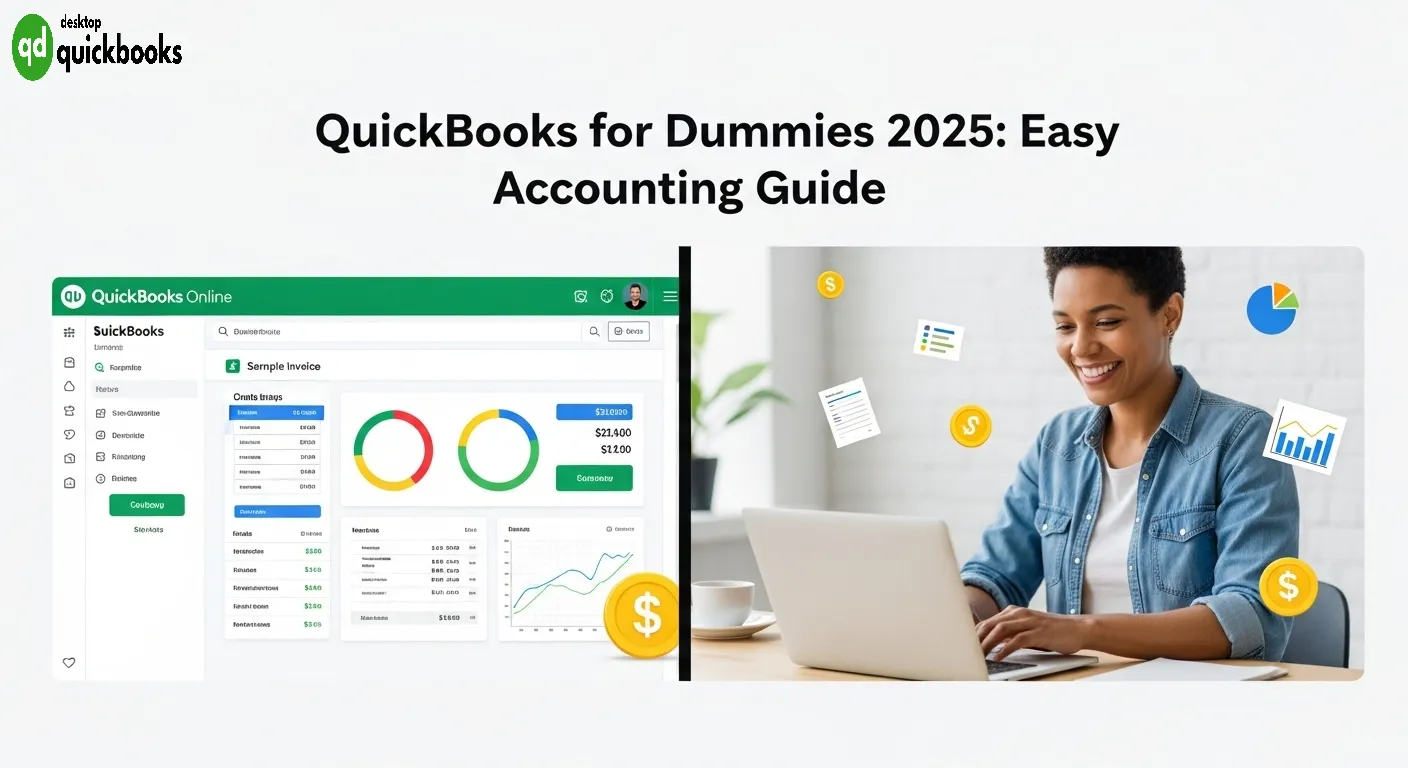
QuickBooks For Dummies is the leading cloud-based accounting platform, used by millions of small businesses around the world to manage their finances. This comprehensive guide simplifies complex accounting concepts into easy-to-follow steps that anyone can understand.
Small business owners and entrepreneurs are under increasing pressure to keep accurate financial records while also trying to grow their businesses. In 2025, it’s essential to have efficient automated solutions that eliminate manual bookkeeping mistakes and provide real-time financial insights. QuickBooks Online 2025 offers exactly what you need with its user-friendly interface and powerful automation features.
This guide is designed for entrepreneurs, managers, and employees who want to learn basic accounting skills without needing extensive financial training. Whether you’re starting your first business or moving away from manual bookkeeping, it’s important to understand QuickBooks in order to make smart financial decisions.
By mastering QuickBooks in 2025, you’ll gain access to features powered by artificial intelligence (AI), the ability to use it on multiple devices seamlessly, and detailed reporting tools. These capabilities will turn time-consuming accounting tasks into efficient processes, giving business owners more time to focus on what really matters: growing their companies and providing excellent service to their customers.
For the most reliable QuickBooks desktop solutions, visit QBO Desktop – your trusted QuickBooks desktop provider.
Choosing the Right QuickBooks Subscription
QuickBooks subscription plans for 2025 offer four distinct tiers designed to accommodate businesses of varying sizes and complexity. The Simple Start plan serves solo entrepreneurs with basic invoicing and expense tracking capabilities. Essentials adds bill management and multiple user access for growing teams. Plus incorporates inventory tracking and project management tools for established businesses. Advanced provides enhanced reporting, premium support, and workflow automation for larger enterprises.
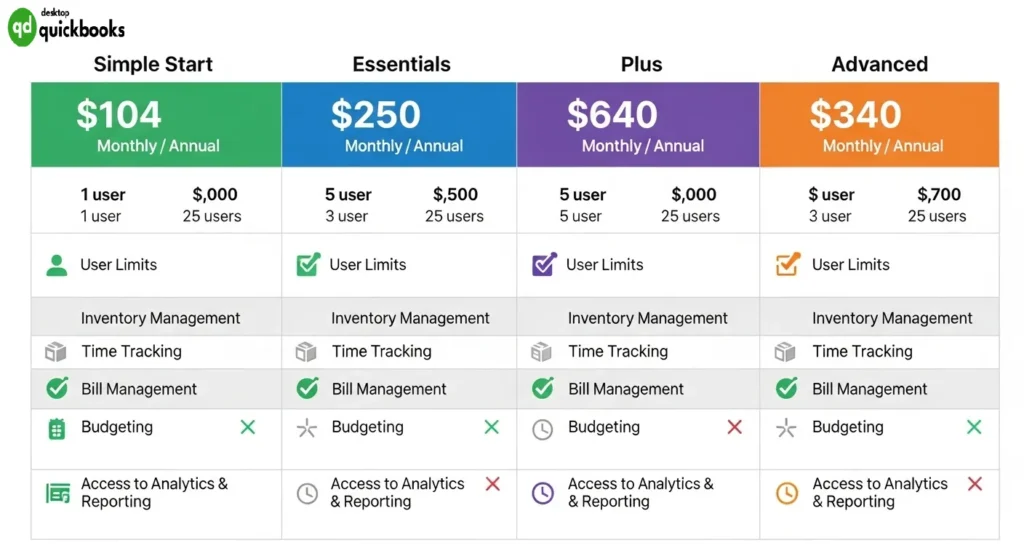
QuickBooks pricing scales with functionality, starting from basic bookkeeping needs to comprehensive business management solutions. Each tier builds upon the previous level’s capabilities while introducing specialized tools.
Key Differences in QuickBooks Features
A comparison of QuickBooks features reveals the main differences:
- User limits: Simple Start (1 user) vs Advanced (25+ users)
- Inventory management: Available in Plus and Advanced only
- Time tracking: Included in Essentials and higher tiers
- Custom reporting: Enhanced options in Plus and Advanced
Business size, transaction volume, and required integrations determine the optimal plan selection. Service-based businesses typically benefit from Essentials, while product-based companies require Plus for inventory functionality. For comprehensive QuickBooks desktop solutions, QBO Desktop provides specialized support and implementation services.
Setting Up Your QuickBooks Account
Creating your QuickBooks Online account marks the beginning of streamlined business accounting. This QuickBooks setup guide transforms complex financial management into a user-friendly accounting setup process that takes minutes to complete.
Creating Your New Account
Navigate to the QuickBooks Online signup page and select your chosen subscription plan. Enter your business email address and create a secure password containing uppercase letters, numbers, and special characters. Verify your email through the confirmation link sent to your inbox.
Account Configuration Essentials
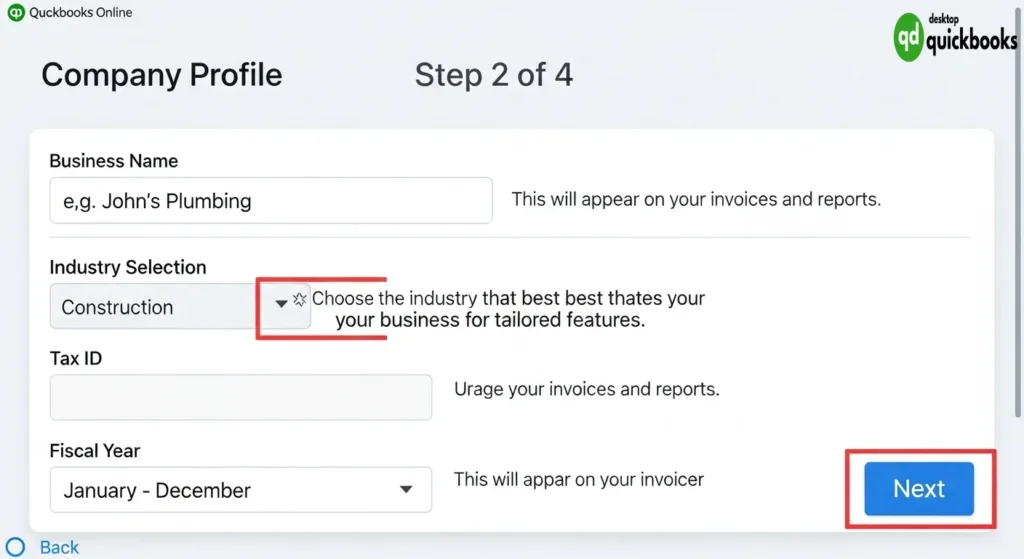
Complete your company profile by entering:
- Business name and legal entity type
- Industry classification for tailored features
- Tax identification number (EIN or SSN)
- Business address and contact information
- Fiscal year start date for accurate reporting
Customizing Preferences
Access the Settings menu to configure:
- Chart of accounts structure
- Invoice templates and numbering sequences
- Sales tax settings based on your location
- Currency preferences for international transactions
Secure Bank Integration
Connect your financial accounts through QuickBooks’ encrypted bank feeds:
- Select Banking from the main menu
- Choose Connect Account
- Search for your bank from the verified list
- Enter online banking credentials through the secure portal
- Select accounts for automatic transaction downloads
The system uses 256-bit SSL encryption to protect sensitive financial data during the connection process. Multiple bank accounts and credit cards can be linked simultaneously for comprehensive transaction tracking.
For businesses requiring desktop functionality, QBO Desktop offers the most reliable QuickBooks desktop solutions with seamless cloud integration capabilities.
Managing Sales Transactions Easily
The 2025 edition of QuickBooks Online makes it easier to manage sales transactions with user-friendly tools designed to make businesses more efficient.
Professional Invoice Generation
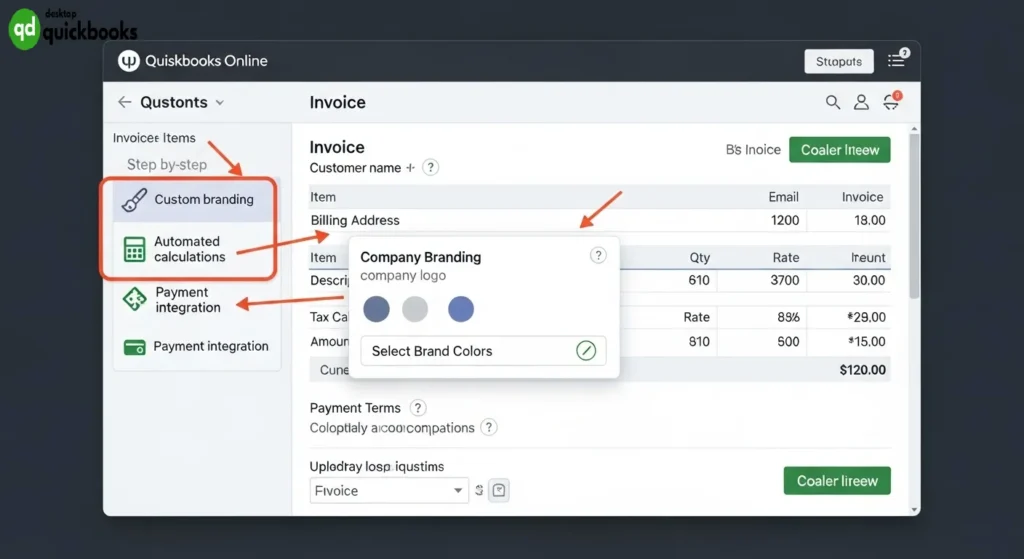
QuickBooks Online 2025 makes creating invoices easy:
- Custom branding – Add your company logo, choose colors, and include personalized messages
- Automated calculations – Tax rates and totals update automatically
- Payment integration – Enable online payments through multiple gateways
- Recurring invoices – Set up automatic billing for subscription services
Here’s how to create invoices in QuickBooks:
- Go to the Sales menu
- Select “Invoice”
- Customize the invoice using the available options
- Send the invoice directly to your customer via email
Accurate Sales Receipt Recording
You can record sales receipts for immediate payment transactions using the Sales dashboard. Here’s how:
- Open the Sales dashboard
- Select “Sales Receipt”
- Enter the details of the payment received (cash, check, or card)
- Save the sales receipt
With this feature, you can keep track of payments received in real-time, automatically record bank deposits, maintain customer payment history, and integrate with point-of-sale systems.
Credit Memo Management
QuickBooks allows you to handle returns and discounts professionally using credit memos. Here’s what you can do:
- Process returns by linking credit memos to original invoices
- Apply discounts by creating promotional credits for customer accounts
- Manage refunds by tracking cash refunds or account credits
- Maintain detailed transaction histories
To access this feature, go to Sales > Credit Memo in QuickBooks.
The QuickBooks for dummies approach emphasizes these core sales functions as building blocks for comprehensive financial management. Each transaction type connects seamlessly with inventory tracking, customer management, and financial reporting features available through QBO Desktop, ensuring accurate business records across all operational areas.
Efficient Bill Payment and Expense Tracking with QuickBooks Online 2025 Edition
QuickBooks Online 2025 Edition transforms how businesses pay bills in QuickBooks Online 2025 Edition through its streamlined vendor management system. The software allows you to record vendor bills directly by navigating to the Expenses tab and selecting Vendors. Enter bill details including due dates, amounts, and account categories, then schedule automatic payments to maintain healthy vendor relationships while avoiding late fees.
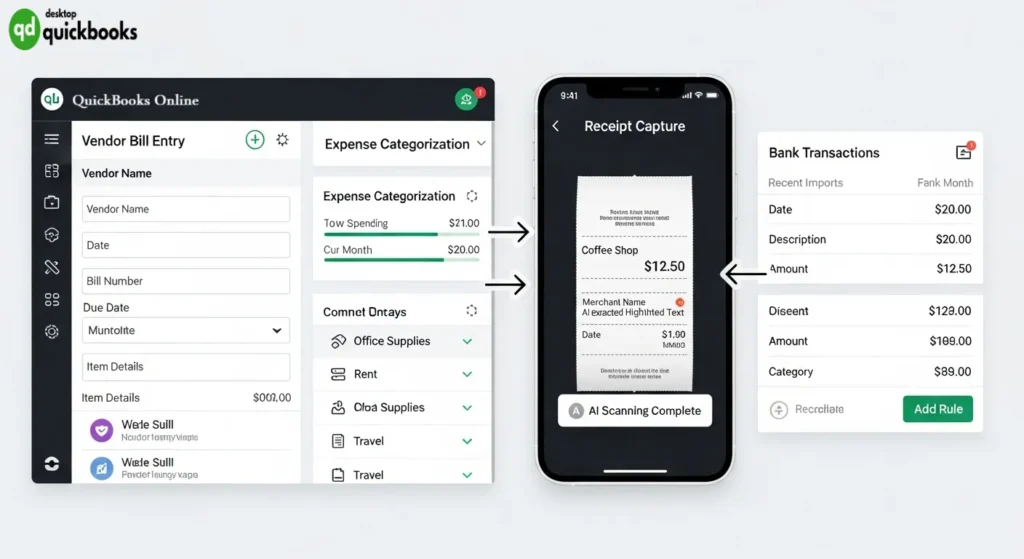
The platform’s expense management tools provide comprehensive oversight of business spending patterns. Create expense categories that align with your chart of accounts, enabling precise tracking of operational costs. Upload receipt photos directly through the mobile app, where AI technology automatically extracts key information and categorizes transactions.
Organizing Cash Flow Management
Track business expenses easily using QuickBooks online 2025 edition by connecting your business bank accounts and credit cards. The system automatically imports transactions, reducing manual data entry while maintaining accuracy. Set up recurring bill payments for utilities, rent, and subscriptions to ensure consistent cash flow planning.
- Vendor Management: Maintain detailed vendor profiles with payment terms and contact information
- Expense Categories: Organize spending into tax-deductible categories for simplified reporting
- Payment Scheduling: Automate bill payments based on cash flow projections
- Receipt Capture: Store digital receipts linked to specific transactions
The dashboard provides real-time visibility into upcoming payments, helping you prioritize expenses and maintain optimal cash reserves. QBO Desktop offers additional desktop integration options for businesses requiring enhanced local data management capabilities.
Inventory Management Made Simple in QuickBooks Online 2025 Edition
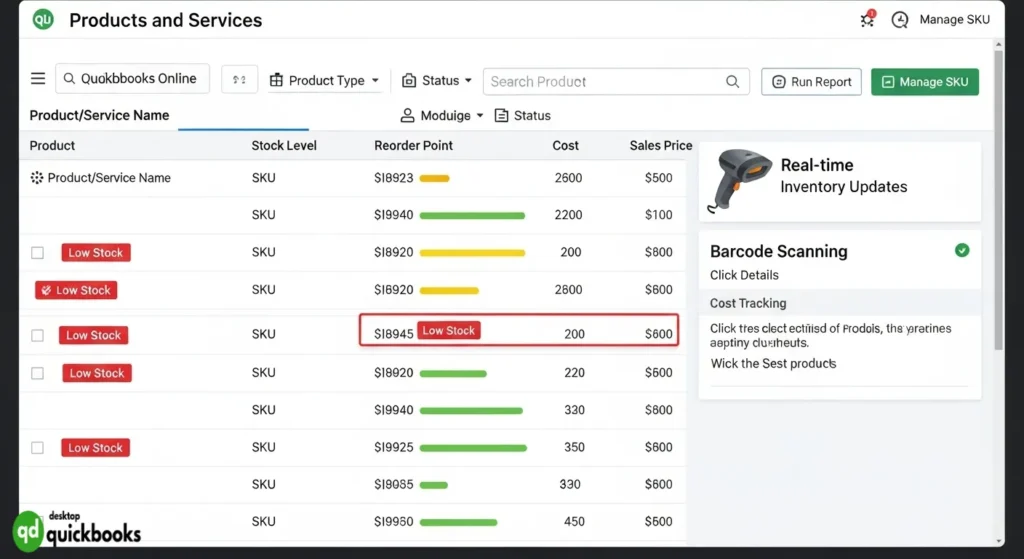
Inventory tracking in QuickBooks Online 2025 edition turns complex stock management into smooth operations. The platform’s ability to monitor in real-time provides immediate visibility into current stock levels, preventing expensive stockouts and overstock situations.
Real-Time Inventory Monitoring
QuickBooks Online automatically updates inventory quantities as sales occur and purchases are recorded. The dashboard displays current stock levels, reorder points, and quantity on hand for each item. Low stock alerts notify you when inventory reaches predetermined thresholds, enabling proactive purchasing decisions.
Building Your Product and Service Lists
Adding items to your inventory requires just a few clicks:
- Navigate to Sales → Products and Services
- Select New and choose Inventory for tracked items
- Enter product details including SKU, description, and cost
- Set initial quantity on hand and reorder points
- Configure sales price and income account
Stock management tools in QuickBooks Online 2025 edition include barcode scanning capabilities for mobile devices, making inventory updates efficient during receiving or cycle counts. The system tracks the cost of goods sold automatically, ensuring accurate profit calculations on every transaction.
For service-based businesses, non-inventory items can be created without quantity tracking while maintaining consistent pricing and descriptions across all customer interactions. QBO Desktop offers enhanced inventory features for businesses requiring more robust stock management capabilities.
Payroll Processing and Tax Preparation Simplified with QuickBooks Online 2025 Edition
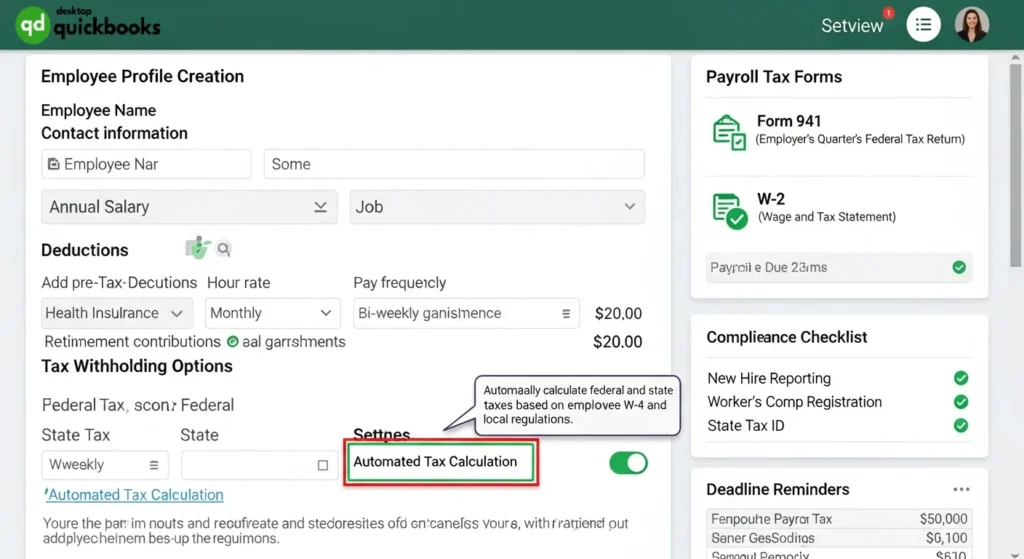
Payroll in QuickBooks Online 2025 edition transforms complex payroll tasks into streamlined processes. The software handles employee setup by capturing essential information including salary structures, hourly rates, and various deductions such as health insurance, retirement contributions, and tax withholdings.
Setting Up Employee Payroll
Creating employee profiles requires entering:
- Basic Information: Name, address, Social Security number
- Compensation Details: Salary amounts or hourly rates
- Deduction Categories: Health benefits, 401(k) contributions, garnishments
- Tax Information: Federal and state withholding preferences
Automated Tax Calculations
The system automatically calculates federal, state, and local taxes based on current tax tables. Payroll tax returns QuickBooks Online 2025 edition generates accurate forms including 941s, 940s, and W-2s without manual computation errors.
Simplify tax preparation using QuickBooks Online 2025 edition by leveraging built-in compliance features that track tax liabilities and deadlines. The platform maintains updated tax rates and automatically applies changes to payroll calculations.
For businesses seeking comprehensive accounting solutions, QBO Desktop provides additional desktop-based functionality alongside cloud capabilities, making QuickBooks for dummies accessible across different user preferences and technical requirements.
Budgeting Tools & Financial Reports Generation Made Easy with Quickbooks Online 2025 Edition
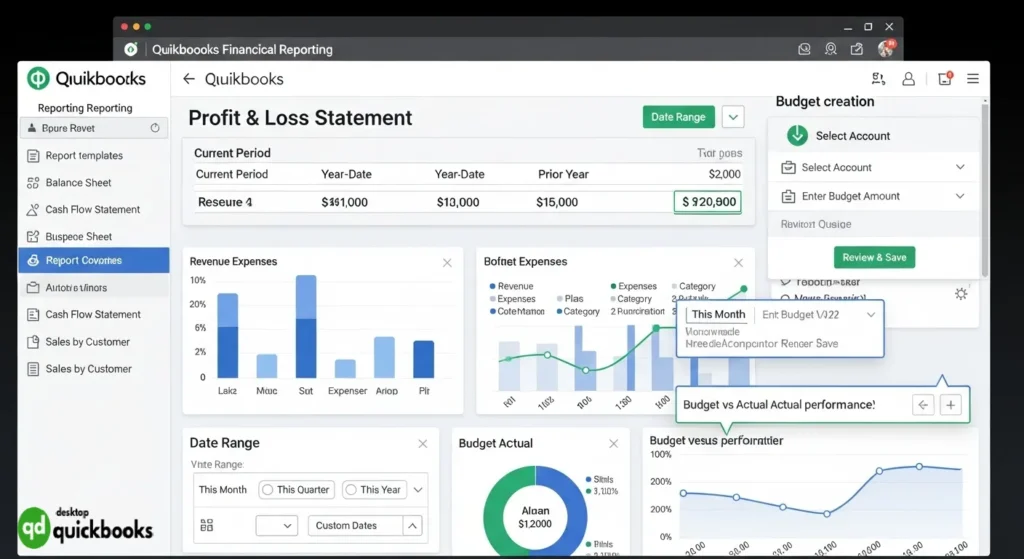
Budgeting tools quickbooks online 2025 edition empowers businesses to create comprehensive financial plans aligned with strategic objectives. The platform’s intuitive budget creation wizard guides users through establishing realistic revenue projections and expense allocations across different categories and time periods.
Creating Strategic Business Budgets
QuickBooks Online 2025 offers multiple budget templates designed for various business models:
- Annual operating budgets with monthly breakdowns
- Project-specific budgets for tracking individual initiatives
- Department-based budgets for larger organizations
- Cash flow budgets to monitor liquidity requirements
The system automatically pulls historical data to suggest realistic budget figures, while allowing complete customization based on growth targets and market conditions.
Professional Financial Reporting
Financial reports generation quickbooks online 2025 edition delivers instant access to critical business insights through automated report creation. The enhanced reporting engine produces professional-grade documents including:
- Profit & Loss statements with customizable date ranges and comparison periods
- Balance sheets showing real-time asset and liability positions
- Cash flow statements tracking money movement patterns
- Budget vs. actual reports highlighting performance variances
Each report includes visual charts and graphs, making complex financial data accessible to stakeholders. Custom filters allow users to analyze specific accounts, classes, or locations while maintaining data accuracy through real-time synchronization with QuickBooks desktop solutions.
Advanced Features & AI Enhancements in The Latest Version Of Quickbooks Online (2025)
The AI in accounting software revolution has transformed QuickBooks Online into an intelligent financial management powerhouse. Machine learning algorithms now automatically categorize transactions, detect duplicate entries, and suggest account classifications based on your business patterns. Smart receipt capture uses optical character recognition to extract vendor information, amounts, and dates from uploaded photos, eliminating manual data entry.
The QuickBooks Ledger feature provides unprecedented transaction visibility through an interactive timeline view. This innovative tool displays all account activities chronologically, allowing users to drill down into specific transactions with contextual details. Color-coded entries distinguish between different transaction types, while filtering options help locate specific payments or deposits instantly.
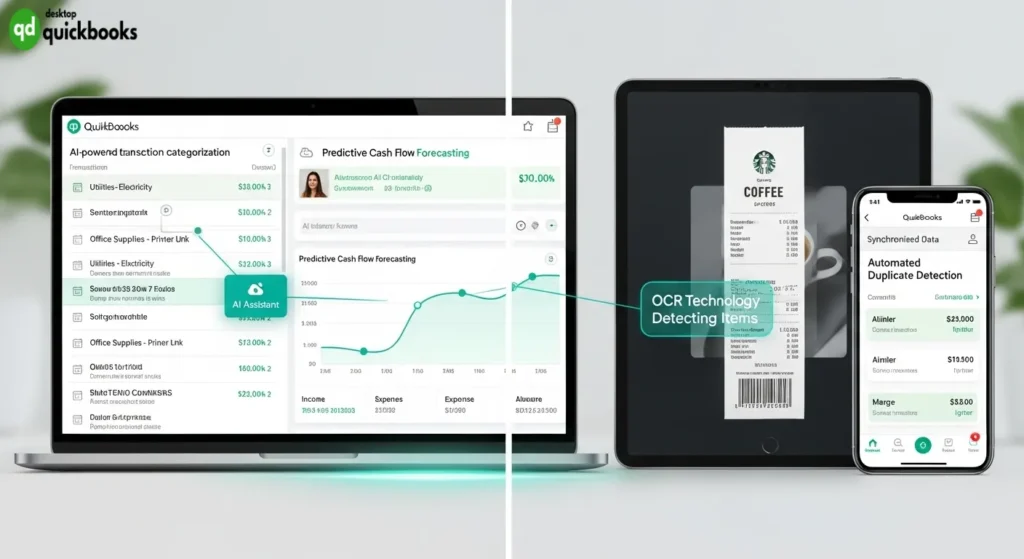
Latest QuickBooks updates (online version) include enhanced mobile functionality with offline sync capabilities, improved bank reconciliation workflows, and streamlined user permissions management. The platform now offers predictive cash flow forecasting, automated bill approval workflows, and advanced search functionality that recognizes natural language queries. These updates significantly reduce time spent on routine bookkeeping tasks while improving accuracy across all accounting functions.
For businesses seeking comprehensive QuickBooks solutions, QBO Desktop remains the premier provider for desktop accounting needs.
Data Backup, Multi-device Access, Tips & Tricks for Maximizing Efficiency with QuickBooks For Dummies
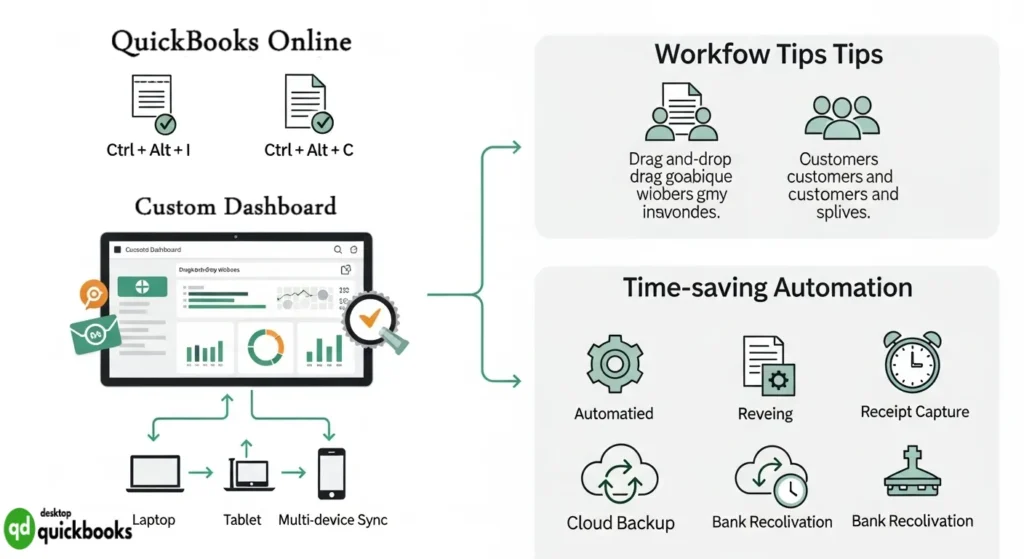
Protecting Your Financial Data with Cloud-Based Backup
Data backup QuickBooks Online operates automatically through secure cloud servers, eliminating the risk of losing critical financial information. Your accounting data syncs continuously across QuickBooks’ protected infrastructure, providing peace of mind without manual intervention. The platform maintains multiple backup copies, ensuring your business records remain accessible even during unexpected technical issues.
Seamless Multi-Device Access
Cloud access accounting software enables you to manage your books from laptops, tablets, or smartphones with identical functionality. Your dashboard, reports, and transaction history remain synchronized across all devices, allowing real-time collaboration with team members and accountants. This flexibility proves invaluable for business owners who travel frequently or work from multiple locations.
Essential Beginner Tips for Success
Beginner tips QuickBooks Online include establishing consistent data entry habits from day one. Set up automatic bank feeds to reduce manual transaction recording, but always review imported transactions for accuracy. Create standardized naming conventions for customers, vendors, and accounts to maintain organized records.
Time-Saving Shortcuts and Workflow Hacks
Master these accounting shortcuts to streamline daily tasks:
- Ctrl + Alt + I – Create new invoice instantly
- Ctrl + Alt + C – Add new customer record
- Ctrl + Alt + V – Access vendor center quickly
- Tab + Enter – Navigate and save forms efficiently
The search function (Ctrl + Alt + F) locates any transaction, customer, or vendor within seconds. Customize your dashboard to display frequently used features, reducing clicks and improving workflow efficiency for your QuickBooks for dummies journey with QBO Desktop.
Conclusion
QuickBooks for dummies has transformed from a simple accounting tool into a comprehensive business management platform. This small business accounting guide using QuickBooks has walked you through every essential feature, from basic setup to advanced AI-powered automation.
Your journey with QuickBooks Online doesn’t end here. The platform continues evolving with new features designed to streamline your financial operations. Each tool discussed—whether invoice generation, expense tracking, inventory management, or payroll processing—works together to create a cohesive accounting ecosystem.
Key benefits you can now leverage:
- Automated transaction categorization saves hours of manual data entry
- Real-time financial reporting enables informed decision-making
- Cloud-based accessibility keeps your business running from anywhere
- Integrated payroll and tax features reduce compliance headaches
Mastering QuickBooks online version for dummies book concepts requires practice. Start with basic transactions, gradually incorporating advanced features like budgeting tools and AI enhancements. The time invested in learning these systems pays dividends through improved accuracy and efficiency.
Small businesses using QuickBooks report significant time savings and better financial visibility. Your accounting processes can achieve the same transformation by implementing the strategies outlined in this guide.
For the most reliable QuickBooks desktop solutions, consider QBO Desktop as your trusted provider for comprehensive accounting software support.
Take action today—your future self will thank you for establishing solid accounting foundations now.
FAQs (Frequently Asked Questions)
What is QuickBooks Online 2025 and who is it best suited for?
QuickBooks Online 2025 is a leading cloud accounting platform designed for beginners and small business owners. It offers user-friendly tools to manage business accounting efficiently, making it ideal for those new to accounting or looking to streamline their financial management.
How do I choose the right QuickBooks subscription plan for my business in 2025?
QuickBooks Online offers multiple subscription plans tailored to different business sizes and needs. To select the best plan, consider your business requirements, such as invoicing, inventory management, or payroll features. Compare pricing and included functionalities to find the most suitable tier that fits your budget and operational demands.
What are the steps to set up a new QuickBooks Online account?
Setting up QuickBooks Online involves creating an account, entering your company details and preferences, and securely connecting your bank accounts and credit cards. The platform provides a step-by-step guide to configure your account easily, ensuring accurate tracking of your financial transactions from the start.
How can I manage sales transactions like invoicing and credit memos in QuickBooks Online 2025?
QuickBooks Online 2025 allows you to create professional invoices and send them directly to customers. You can record sales receipts accurately within the system and use credit memos effectively to handle returns or discounts, ensuring your sales records are precise and up-to-date.
What tools does QuickBooks Online 2025 offer for payroll processing and tax preparation?
The latest version simplifies payroll setup by allowing you to manage employee salaries, deductions, and automate payroll tax calculations. It also streamlines tax preparation with integrated features that help ensure compliance and reduce manual errors during tax season.
How does QuickBooks Online 2025 enhance efficiency with AI features and multi-device access?
QuickBooks Online 2025 incorporates AI-powered tools that automate repetitive accounting tasks, improving accuracy and saving time. Additionally, it supports secure cloud access from any device, enabling flexible financial management on-the-go. Beginners can also benefit from practical tips and keyboard shortcuts designed to maximize daily bookkeeping efficiency.